Sign In Sign In

Continue with Google
or use

Forgot Password?

Don't have account, Sign Up Here

Forgot Password Forgot Password

Lost your password? Please enter your email address. You will receive a link and will create a new password via email.

Have an account? Sign In Now

Sorry, you do not have permission to ask a question, You must login to ask a question.

Continue with Google
or use

Forgot Password?

Need An Account, Sign Up Here

Please briefly explain why you feel this question should be reported.

Please briefly explain why you feel this answer should be reported.

Please briefly explain why you feel this user should be reported.

Sign InSign Up

Nuq4

Nuq4 Logo Nuq4 Logo
Search
Ask A Question

Mobile menu

Close
Ask a Question
  • Nuq4 Shop
  • Become a Member

Social Media

Share
  • Facebook
1 Follower
7 Answers
212 Questions
  • Recent Questions
  • Most Answered
  • No Answers
  • Most Visited
  • Most Voted

Nuq4 Latest Questions

  • 0
Wahab SaeedResearcher
In: TikTok

How do you block someone on TikTok

  • 0
How do you block someone on TikTok
  1. Best Answer
    Wahab Saeed Researcher
    Added an answer on September 27, 2023 at 12:15 am
    This answer was edited.

    TikTok is a popular social media platform that allows users to create and share short video clips. While it's a great platform for connecting with friends and discovering new content, there may be times when you want to block someone for various reasons. Blocking a user on TikTok is a simple processRead more

    TikTok is a popular social media platform that allows users to create and share short video clips. While it’s a great platform for connecting with friends and discovering new content, there may be times when you want to block someone for various reasons. Blocking a user on TikTok is a simple process that can help you control your online experience.

    how do you block someone on tiktok

    Step 1: Open the TikTok App

    First, open the TikTok app on your mobile device. Make sure you’re logged into your account.

    Step 2: Go to the User’s Profile

    Navigate to the profile of the user you want to block. You can do this by searching for their username or finding them in your followers or following list.

    Step 3: Open the User’s Profile Options

    Once you’re on the user’s profile, you’ll see three dots (…) in the top right corner. Tap on these dots to open a menu of options.

    Step 4: Select “Block”

    From the menu that appears, select “Block.” TikTok will ask you to confirm your decision to block this user.

    Step 5: Confirm the Block

    Confirm that you want to block this user. Once confirmed, TikTok will block the user, and they won’t be able to view your content or interact with you on the platform.

    Step 6: Managing Blocked Users

    To manage blocked users or unblock someone in the future, go to your profile, click on the three dots in the top right corner to access settings, and then select “Privacy and Safety.” Under “Safety,” you’ll find the “Blocked Accounts” section, where you can view and manage your blocked users.

    Note: If you’re having trouble locating the three dots to block a user on TikTok, you can use an alternative method. Simply click on the share icon instead. When the menu pops up below, select “Block.” A confirmation pop-up will then appear, asking if you’re certain you want to block this user. Tap “Block” to proceed.

    Conclusion

    Blocking someone on TikTok is a straightforward process that can help you control your online interactions. Whether you’re dealing with unwanted attention, harassment, or simply want to limit who can interact with your content, knowing how to block users is a useful skill. Remember to use this feature responsibly and only block users when necessary.

    See less
    • 0
    • Share
      Share
      • Share onFacebook
      • Share on Twitter
      • Share on LinkedIn
      • Share on WhatsApp
  • 1 Answer
Answer
  • 0
Claire
In: Hulu

What is the best new horror movie on Hulu?

  • 0
  1. Sana
    Added an answer on November 16, 2023 at 5:23 am

    Here are some of the best new horror movies on Hulu: The Boogeyman (2023): A slow-burning psychological horror film that follows a family who must confront their deepest fears when a sinister entity known as the Boogeyman begins to prey on them. Clock (2023): A thought-provoking and disturbing psychRead more

    Here are some of the best new horror movies on Hulu:

    • The Boogeyman (2023): A slow-burning psychological horror film that follows a family who must confront their deepest fears when a sinister entity known as the Boogeyman begins to prey on them.

    • Clock (2023): A thought-provoking and disturbing psychological horror film that explores the pressures women face around reproduction.

    • Appendage (2023): A body horror film about an overworked fashion designer whose anxieties begin to manifest into strange physical abnormalities.

    • No One Will Save You (2023): A brutal and suspenseful slasher film about a group of friends who are hunted by a masked killer.

    • Jagged Mind (2023): A psychological thriller about a young woman who is haunted by her past and must confront her own demons.

    These are just a few of the many great horror movies available on Hulu. With so many options to choose from, you’re sure to find something that will scare you silly.

    See less
    • 0
    • Share
      Share
      • Share onFacebook
      • Share on Twitter
      • Share on LinkedIn
      • Share on WhatsApp
  • 1 Answer
Answer
  • 0
Anuradha
In: YouTube

Can you make money on YouTube

  • 0
Can you make money on YouTube
  1. Isabella3
    Added an answer on September 22, 2023 at 5:24 am

    Yes, you can make money on YouTube. Many content creators, known as YouTubers, earn income through various methods on the platform. Here's a brief overview of how YouTubers make money: Ad Revenue: This is the most common way YouTubers earn money. YouTube's Partner Program allows eligible channels toRead more

    Yes, you can make money on YouTube. Many content creators, known as YouTubers, earn income through various methods on the platform. Here’s a brief overview of how YouTubers make money:

    1. Ad Revenue: This is the most common way YouTubers earn money. YouTube’s Partner Program allows eligible channels to monetize their content by displaying ads. You earn a share of the revenue generated from these ads based on factors like video views, watch time, and viewer engagement.
    2. Sponsorships and Brand Deals: YouTubers often collaborate with brands and sponsors to promote their products or services in their videos. These collaborations can be lucrative, especially for channels with a large and engaged audience.
    3. Merchandise Sales: Some YouTubers create and sell their merchandise, such as clothing, accessories, or digital products, to their fans through platforms like Teespring or custom online stores.
    4. Channel Memberships: YouTube offers a channel membership feature that allows YouTubers to offer exclusive perks to their subscribers for a monthly fee. Subscribers get access to custom badges, emojis, and members-only content.
    5. Super Chats and Super Stickers: During live streams or Premiere videos, viewers can send Super Chats or Super Stickers, which are paid messages and animations. Creators receive a portion of the revenue from these interactions.
    6. YouTube Premium Revenue: YouTube Premium subscribers watch videos without ads. YouTube distributes a portion of their subscription fees to creators based on the content they watch.
    7. Affiliate Marketing: YouTubers may include affiliate links in their video descriptions, which allow them to earn a commission on sales generated through those links. This is common in product review or recommendation videos.
    8. Crowdfunding: Some YouTubers use crowdfunding platforms like Patreon or Kickstarter to receive direct financial support from their audience in exchange for exclusive content or rewards.
    9. Teaching and Consulting: YouTubers with expertise in various fields may offer online courses, consulting services, or sell e-books to their viewers.
    10. Selling Digital Products: Creators can sell digital products like e-books, presets, or templates directly to their audience.

    It’s important to note that building a successful YouTube channel and generating substantial income typically requires consistent content creation, audience engagement, and marketing efforts. Earnings can vary widely based on factors like niche, audience size, and content quality.

    See less
    • 0
    • Share
      Share
      • Share onFacebook
      • Share on Twitter
      • Share on LinkedIn
      • Share on WhatsApp
  • 1 Answer
Answer
  • 0
Anuradha
In: Facebook

How to find archived Facebook messages

  • 0
  1. Ava
    Added an answer on September 18, 2023 at 1:28 pm

    To find archived Facebook messages, you can follow these steps: Open Facebook Messenger: Start by opening the Facebook Messenger app on your mobile device or go to the Messenger website (messenger.com) and log in with your Facebook credentials. Click on Your Profile Picture: In the top left corner oRead more

    To find archived Facebook messages, you can follow these steps:

    1. Open Facebook Messenger: Start by opening the Facebook Messenger app on your mobile device or go to the Messenger website (messenger.com) and log in with your Facebook credentials.
    2. Click on Your Profile Picture: In the top left corner of the Messenger app, click on your profile picture or name to open your profile.
    3. Tap “More” (for Mobile) or “Settings” (for Web): On the mobile app, you’ll see a “More” option; tap on it. On the web version, you’ll find “Settings” in the bottom left corner. Click on it.
    4. Select “Archived:” In the “More” or “Settings” menu, you’ll see an option labeled “Archived.” Click or tap on it.
    5. View Archived Messages: You’ll now see a list of your archived conversations. These are the messages you’ve chosen to archive in the past. You can click on any conversation to view its contents.
    6. Unarchive a Message: If you want to unarchive a message and move it back to your main inbox, open the archived conversation and send a new message to the person. This will automatically unarchive the entire conversation.

    Please note that archiving a message simply hides it from your main chat list. It doesn’t delete the conversation, and you can access it anytime from the “Archived” folder.

    See less
    • 0
    • Share
      Share
      • Share onFacebook
      • Share on Twitter
      • Share on LinkedIn
      • Share on WhatsApp
  • 1 Answer
Answer
  • 0
Claire
In: Hulu

What is the best new action movie on Hulu?

  • 0
  1. خالد
    Added an answer on November 14, 2023 at 2:10 am

    The best new action movie on Hulu in 2023 is Black Adam. It is a highly anticipated superhero film that follows the origin story of the titular character, a powerful anti-hero who is freed from a 5,000-year-old imprisonment and must now decide whether to embrace his dark side or become a force for gRead more

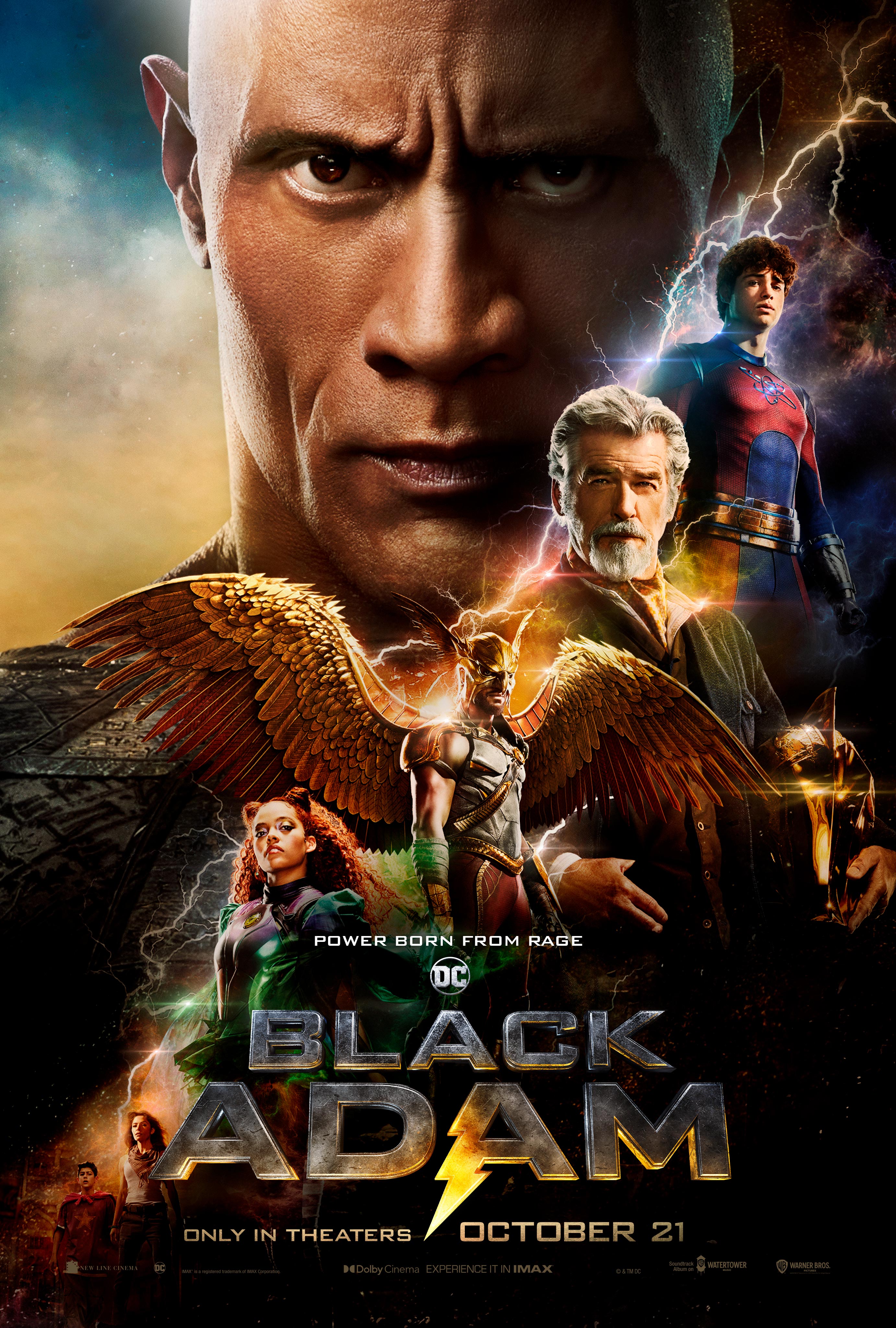
    The best new action movie on Hulu in 2023 is Black Adam. It is a highly anticipated superhero film that follows the origin story of the titular character, a powerful anti-hero who is freed from a 5,000-year-old imprisonment and must now decide whether to embrace his dark side or become a force for good in the world.

    Black Adam (2022) - IMDb

    Other great new action movies on Hulu in 2023 include:

    • Bullet Train
    • The Lost City
    • The Old Guard
    • Nobody
    • John Wick
    • Atomic Blonde
    • Mad Max: Fury Road
    • Mission: Impossible – Fallout
    • The Raid
    • The Raid 2
    • Drive
    • Dredd
    • Haywire
    See less
    • 0
    • Share
      Share
      • Share onFacebook
      • Share on Twitter
      • Share on LinkedIn
      • Share on WhatsApp
  • 1 Answer
Answer
  • 0
Valentina
In: Crypto Coin, IPL, LINE

What is the difference between self-motivation and self-discipline?

  • 0
  1. Nawaz
    Added an answer on November 18, 2023 at 10:44 pm

    Self-Motivation: Definition: The internal drive or enthusiasm to initiate and sustain one's actions. Characteristics: Involves inspiration, goals, passion, and the desire for personal growth. Example: Setting a fitness goal and feeling motivated to exercise regularly. Self-Discipline: Definition: ThRead more

    1. Self-Motivation:
      • Definition: The internal drive or enthusiasm to initiate and sustain one’s actions.
      • Characteristics: Involves inspiration, goals, passion, and the desire for personal growth.
      • Example: Setting a fitness goal and feeling motivated to exercise regularly.
    2. Self-Discipline:
      • Definition: The ability to control one’s behavior, stay focused, and persist in tasks.
      • Characteristics: Involves willpower, consistency, and the capacity to overcome distractions or challenges.
      • Example: Studying for exams consistently even when other tempting activities are present.

    Summary: While self-motivation provides the spark to begin a task, self-discipline is the force that ensures its completion through consistent effort and focus.

    See less
    • 0
    • Share
      Share
      • Share onFacebook
      • Share on Twitter
      • Share on LinkedIn
      • Share on WhatsApp
  • 1 Answer
Answer
  • 0
Wahab SaeedResearcher
In: YouTube

how to get YouTube Premium for free

  • 0
  1. Sophia
    Added an answer on December 16, 2023 at 11:55 pm

    Ahoy there, matey! Craving that sweet, sweet YouTube Premium booty without shelling out hard-earned doubloons? Well, buckle up, because I'm about to drop some knowledge bombs that might just land you in ad-free paradise. But remember, just like navigating the treacherous waters of the high seas, theRead more

    Ahoy there, matey! Craving that sweet, sweet YouTube Premium booty without shelling out hard-earned doubloons? Well, buckle up, because I’m about to drop some knowledge bombs that might just land you in ad-free paradise. But remember, just like navigating the treacherous waters of the high seas, there be sharks and krakens out there (terms and conditions, I mean). So proceed with caution and a healthy dose of skepticism.

    Free trials: Aye, the classic! YouTube itself offers a 1-month free trial, a temporary oasis in the desert of ads. Just remember, it’s a siren song, luring you in with sweet background music before hitting you with the subscription bill like a rogue wave. Use it wisely, like a good pirate storing up loot before returning to the real world.

    Family plan hijacking: Got a tech-savvy sibling or a particularly generous cousin? If they’re already sailing the premium seas, see if they’ll let you sneak aboard their family plan. Just remember, sharing is caring, but don’t be a barnacle, hogging all the bandwidth and premium features. Offer to cook a mean virtual fish pie in return, maybe?

    Student and educator swag: If you’re still rocking that fresh-faced student ID, you might be eligible for the free Office 365 Education package, which comes with YouTube Premium as a bonus treasure. Just make sure you haven’t graduated to the dreaded “adult” life yet, or YouTube might make you walk the plank.

    Third-party shenanigans: Now, I wouldn’t normally recommend venturing into these murky waters, but there be some third-party services that offer “free” access to YouTube Premium. Just tread carefully, matey. These can be as treacherous as a Kraken-infested whirlpool, potentially filled with malware and broken promises. Stick to reputable sources and remember, if it sounds too good to be true, it probably is.

    Alternative horizons: Aye, there be other ships on the digital ocean! Consider setting sail with open-source alternatives like NewPipe or YouTube Vanced. They might not have all the bells and whistles of the premium ship, but they’ll get you where you need to go without the pesky ads. Just remember, these be independent vessels, so fair winds and following seas, but don’t expect the royal treatment.

    Ultimately, the choice be yours, me bucko. Weigh the risks and rewards, and chart your course accordingly. Just remember, the open seas be full of wonder, but also danger. So keep your wits about you, and don’t let the siren song of free YouTube Premium lure you onto the rocks. Now go forth and explore, and may the algorithm gods favor your search for ad-free bliss!

    See less
    • 0
    • Share
      Share
      • Share onFacebook
      • Share on Twitter
      • Share on LinkedIn
      • Share on WhatsApp
  • 1 Answer
Answer
  • 0
Ali1234Researcher
In: Crypto Coin, Secret

Do you know how to use that 'secret' button hidden on the back of most iPhones?

  • 0
  1. Ali1234 Researcher
    Added an answer on June 10, 2025 at 4:03 am

    The "secret button" you're referring to on the back of most iPhones is actually a software feature called Back Tap. It was introduced in iOS 14 and allows you to trigger various actions by simply double or triple tapping on the back of your iPhone. It works on iPhones as old as the iPhone 8 and evenRead more

    The “secret button” you’re referring to on the back of most iPhones is actually a software feature called Back Tap. It was introduced in iOS 14 and allows you to trigger various actions by simply double or triple tapping on the back of your iPhone. It works on iPhones as old as the iPhone 8 and even with most cases.
    Here’s how to use and set up Back Tap:
    How to Set Up Back Tap:
    * Open Settings: Go to the “Settings” app on your iPhone.
    * Navigate to Accessibility: Scroll down and tap on “Accessibility.”
    * Select Touch: Under the “Physical and Motor” section, tap on “Touch.”
    * Find Back Tap: Scroll all the way to the bottom and tap on “Back Tap.”
    * Choose Tap Action: You’ll see two options: “Double Tap” and “Triple Tap.” You can set a different action for each.
    * Select an Action: Choose the action you want to be performed when you double or triple tap. There’s a wide range of options, including:
    * System Actions: Control Center, Notification Center, Home, Lock Screen, Screenshot, Siri, Volume Up/Down, Flashlight, Camera, App Switcher, and more.
    * Accessibility Features: AssistiveTouch, Magnifier, VoiceOver, Reachability, etc.
    * Scroll Gestures: Scroll Up, Scroll Down.
    * Shortcuts: This is where it gets really powerful! You can create custom shortcuts using the Shortcuts app to launch any app, perform specific tasks (like calling a contact, sending a message, playing music, etc.), or even trigger complex automations.
    How to Use Back Tap:
    Once you’ve set it up, simply double-tap or triple-tap firmly on the back of your iPhone. You don’t need to tap on the Apple logo specifically, just anywhere on the back of the device. The iPhone’s internal sensors are sensitive enough to detect the taps even through a case.
    Tips and Considerations:
    * Consistency: The consistency of Back Tap can vary slightly depending on how you tap and your iPhone model. Some users find tapping near the camera module or just below the Apple logo to be most consistent.
    * Accidental Triggers: If you find yourself accidentally triggering Back Tap, consider setting the action you want to use most as a triple tap, as it’s less likely to be activated unintentionally.
    * Shortcuts App: To truly unlock the potential of Back Tap, explore the Shortcuts app. You can create almost any action you can imagine and assign it to a Back Tap gesture.
    * Availability: Back Tap is available on iPhone 8 and later models running iOS 14 or a newer version.
    Back Tap is a very useful and customizable feature that can significantly improve your iPhone experience, especially for quick access to frequently used functions or accessibility features.

    See less
    • 0
    • Share
      Share
      • Share onFacebook
      • Share on Twitter
      • Share on LinkedIn
      • Share on WhatsApp
  • 1 Answer
Answer
  • 0
Anuradha
In: YouTube

How to allow ads on YouTube videos

  • 0
How to allow ads on YouTube videos
  1. Isabella3
    Added an answer on September 22, 2023 at 5:39 am

    To allow ads on your YouTube videos and start monetizing your content, you'll need to meet YouTube's eligibility requirements and follow these steps: Meet Eligibility Requirements: You need at least 1,000 subscribers on your YouTube channel. Your videos must have accumulated 4,000 watch hours in theRead more

    To allow ads on your YouTube videos and start monetizing your content, you’ll need to meet YouTube’s eligibility requirements and follow these steps:

    1. Meet Eligibility Requirements:
      • You need at least 1,000 subscribers on your YouTube channel.
      • Your videos must have accumulated 4,000 watch hours in the past 12 months. or 10 million valid public Shorts views in the past 90 days.
      • You must comply with all YouTube monetization policies.
    2. Sign in to Your YouTube Account:
      • Go to YouTube and sign in to the Google account associated with your YouTube channel.
    3. Access YouTube Studio:
      • Click on your profile picture in the upper right corner.
      • Click on “YouTube Studio.”
    4. Navigate to Monetization:
      • In YouTube Studio, click on “Monetization” in the left sidebar. If your channel is eligible, you’ll see a “Monetization” tab.
    5. Enable Monetization:
      • Click on “Monetization,” then click “Start” to begin the monetization process.
    6. Agree to the Terms:
      • Read and agree to the YouTube Partner Program terms.
    7. Associate an AdSense Account:
      • If you haven’t associated an AdSense account with your YouTube channel, you’ll be prompted to do so. Follow the on-screen instructions to set up an AdSense account or link an existing one.
    8. Choose Ad Formats:
      • You can select the types of ads you want to display on your videos. Common ad formats include display ads, overlay ads, skippable video ads, and non-skippable video ads.
    9. Set Monetization Preferences:
      • Customize your monetization preferences, including ad placement and ad experience for your viewers.
    10. Submit for Review:
      • Once you’ve completed all the steps, click “Submit for Review.” YouTube’s team will review your channel to ensure it complies with their policies and guidelines.
    11. Wait for Approval:
      • YouTube will review your channel, which may take some time. You’ll receive an email notification when your channel is approved for monetization.
    12. Start Earning Revenue:
      • Once approved, ads will start appearing on your videos, and you’ll earn revenue from ad views and clicks.

    Remember that YouTube has specific policies and guidelines for ad-friendly content. Ensure your videos comply with these policies to maintain monetization on your channel.

    See less
    • 0
    • Share
      Share
      • Share onFacebook
      • Share on Twitter
      • Share on LinkedIn
      • Share on WhatsApp
  • 1 Answer
Answer
  • 0
Anuradha
In: Facebook

How to see who views your Facebook profile

  • 0
  1. Isabella3
    Added an answer on September 22, 2023 at 4:09 am

    Facebook does not provide a built-in feature or official way for users to see who has viewed their profile. Facebook prioritizes user privacy, and this information is not made available to users for privacy and security reasons. Beware of third-party apps or websites claiming to offer this functionaRead more

    Facebook does not provide a built-in feature or official way for users to see who has viewed their profile. Facebook prioritizes user privacy, and this information is not made available to users for privacy and security reasons.

    Beware of third-party apps or websites claiming to offer this functionality. They are often scams or may compromise your Facebook account’s security.

    If you are concerned about who is viewing your Facebook profile, the best practice is to adjust your privacy settings to control who can see your posts and information on your profile. You can do this by:

    1. Setting Privacy Controls:
      • Go to your Facebook settings.
      • Click on “Privacy.”
      • Adjust settings for who can see your future posts, who can send you friend requests, and more.
    2. Reviewing Your Activity Log:
      • You can review the posts and content you’ve shared on Facebook to see who has interacted with them. Keep in mind that this only shows interactions on your posts and not profile views.
    3. Blocking or Restricting Users:
      • If you suspect someone is harassing or stalking you, you can block or restrict them. Blocking prevents them from seeing your profile, while restricting limits what they can see on your profile.
    See less
    • 0
    • Share
      Share
      • Share onFacebook
      • Share on Twitter
      • Share on LinkedIn
      • Share on WhatsApp
  • 1 Answer
Answer

Sidebar

[the_ad_group id="2732"]

[the_ad id="17089"]

Explore

  • Nuq4 Shop
  • Become a Member

Footer

Get answers to all your questions, big or small, on Nuq4.com. Our database is constantly growing, so you can always find the information you need.

Download Android App

© Copyright 2024, Nuq4.com

Legal

Terms and Conditions
Privacy Policy
Cookie Policy
DMCA Policy
Payment Rules
Refund Policy
Nuq4 Giveaway Terms and Conditions

Contact

Contact Us
Chat on Telegram
We use cookies to ensure that we give you the best experience on our website. If you continue to use this site we will assume that you are happy with it.